Need the Wi-Fi password for a visitor or a new laptop? If one of your devices is already connected, you can see the saved password.
Android
- Settings › Wi-Fi (Connections › Wi-Fi on Samsung).
- Tap the connected network or its gear icon.
- Tap Share (or the QR code icon) and confirm with your PIN or fingerprint.
- The password appears under the QR code. Others can also scan the QR code to join.
iPhone
- Settings › Wi-Fi.
- Tap the (i) next to the network.
- Tap Password and use Face ID/passcode.
- Tap Copy.
iOS 18+ also lists saved Wi-Fi passwords in the Passwords app.
Windows 11
- Settings › Network & internet › Wi-Fi › Manage known networks.
- Click the network › View Wi-Fi security key.
Or open Command Prompt and type: netsh wlan show profile name="NetworkName" key=clear, then look for Key Content.
Mac
Open Keychain Access (or the Passwords app on newer macOS), search for the network name and tick “Show password”.
Your own router
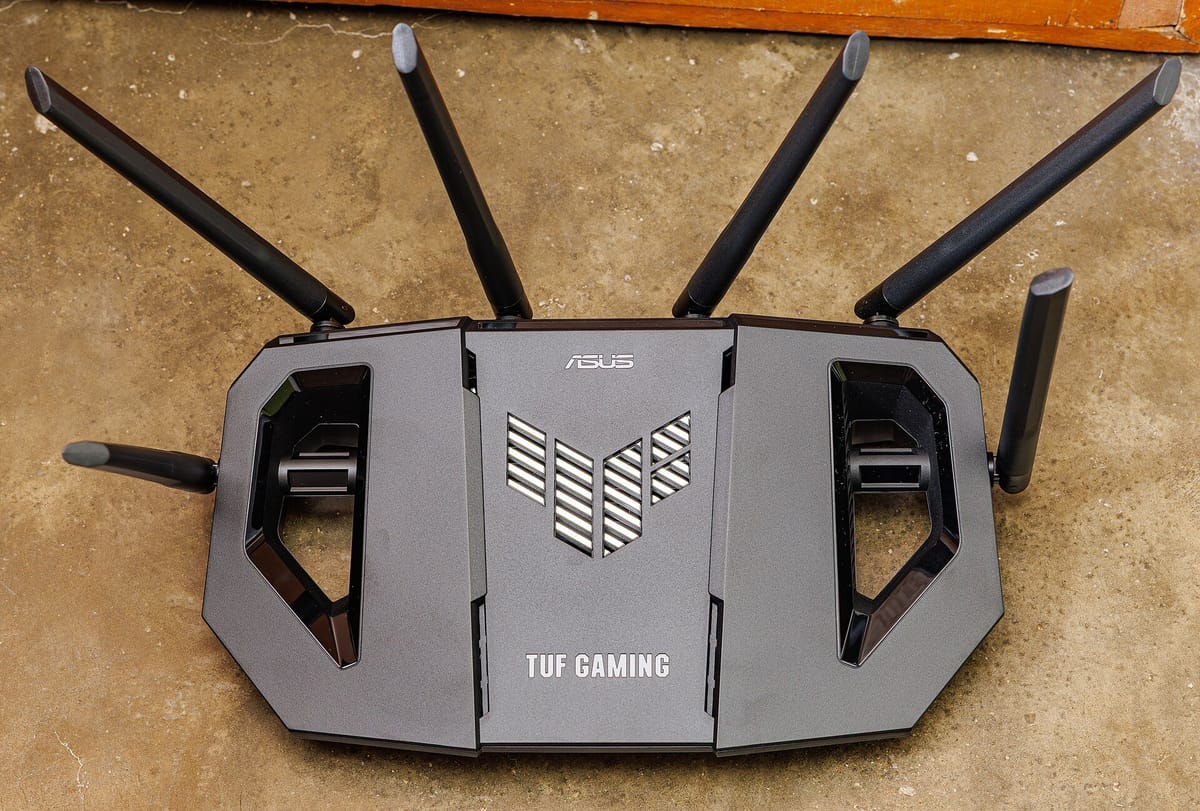
The default password is often on a sticker under the router. If you’ve changed it and forgotten, log in to the router admin page or reset it (see our guide on changing your Wi-Fi password).
Related guides
- How to change your Wi-Fi password
- How to see or change your hotspot password
- Android not connecting to Wi-Fi
Checked on 10 November 2026. Menu names vary slightly by phone brand and software version.
Common questions
How do I see my Wi-Fi password on Android?
Settings › Wi-Fi › tap the network (or gear icon) › Share. The password shows under the QR code (you may need your PIN).
How do I see a Wi-Fi password on iPhone?
Settings › Wi-Fi › tap the (i) next to the network › tap Password and authenticate.
How do I see a Wi-Fi password on Windows 11?
Settings › Network & internet › Wi-Fi › Manage known networks › network › View Wi-Fi security key.
Can I see a password for a network I’ve never joined?
No. Ask the owner, or check the sticker on the router if it’s yours.