Changing your Wi-Fi password is the quickest way to stop neighbours using your data, speed up a slow network and keep your devices safe. It takes about five minutes.
Before you start
- Connect to the router by Wi-Fi or cable.
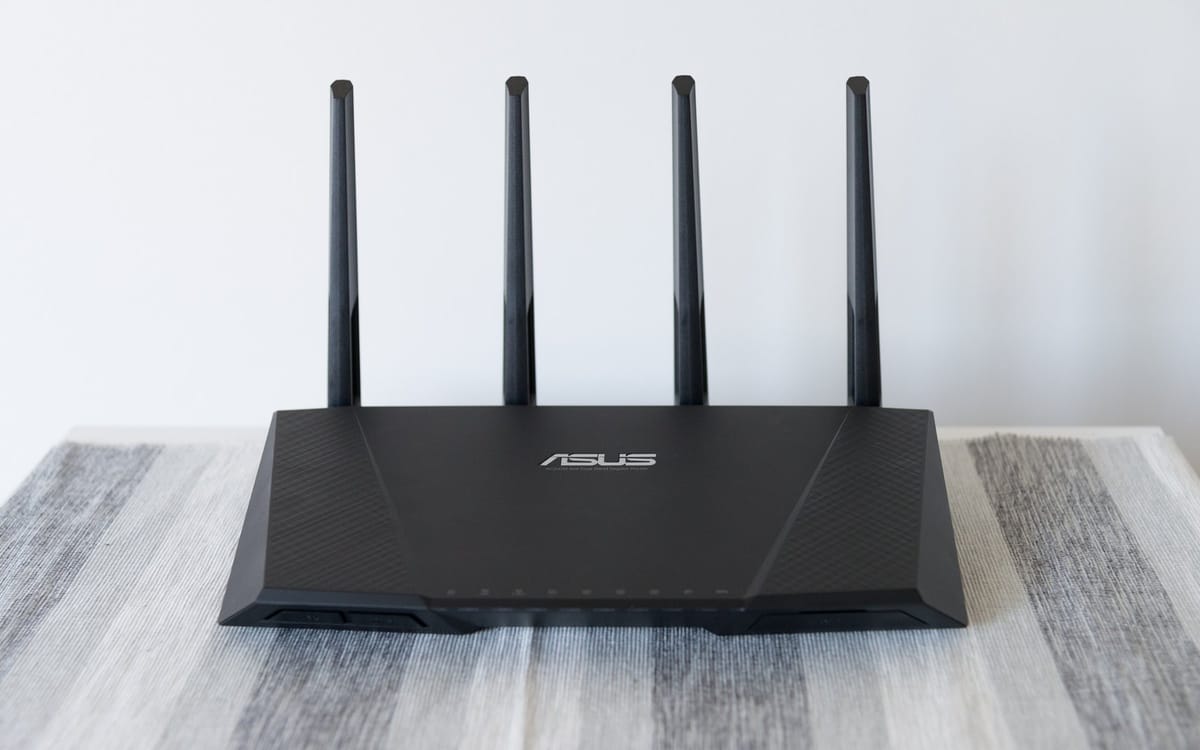
- Find the sticker on the router: it shows the admin address (for example 192.168.8.1), the admin username and password, and the default Wi-Fi name.
Method 1: Through the router’s web page (most routers)
- Open a browser on your phone or laptop and type the admin address from the sticker (often 192.168.1.1, 192.168.0.1 or 192.168.8.1).
- Log in with the admin username and password from the sticker.
- Find Wi-Fi, WLAN or Wireless settings.
- Change the Wi-Fi password (sometimes called “WPA key” or “pre-shared key”). Choose WPA2 or WPA3 security if offered.
- Save. Your devices will disconnect; reconnect with the new password.
This works for most 4G/5G routers sold by MTN and Telecel and for brands like TP-Link and Huawei. Menu names vary slightly.
Method 2: Through the provider’s app
Some routers can be managed from an app (for example, the Huawei AI Life app for many Huawei routers, or your ISP’s app). Look for Wi-Fi settings in the app.
Method 3: Starlink
- Open the Starlink app while connected to your Starlink Wi-Fi.
- Go to Settings (router settings).
- Edit the network name and password, then save.
More on Starlink: Starlink in Ghana.
Also change the admin password
The admin password (to log into the router) is different from the Wi-Fi password. Change it from the default too, or anyone on your Wi-Fi could change your settings.
Choosing a good Wi-Fi password
- At least 12 characters; a short sentence works well.
- Don’t use your name, phone number or “12345678”.
- Share it only with people you trust; use a guest network for visitors if your router has one.
Related guides
This guide was checked in October 2026. Menus and services change, so if something looks different on your phone, check with your provider.
Common questions
What is the default router login address?
Common addresses are 192.168.1.1, 192.168.0.1 and 192.168.8.1 (many Huawei 4G/5G routers). The exact address is on the sticker under the router.
Will everyone be disconnected when I change the password?
Yes. All devices must reconnect with the new password, which is how you remove people you didn’t invite.
How do I change my Starlink Wi-Fi password?
In the Starlink app, open Settings for the router and edit the network name and password.
I forgot the router admin password. What now?
Check the sticker for the default. If it was changed and forgotten, a factory reset (holding the reset button) restores defaults, but you will need to set the router up again.