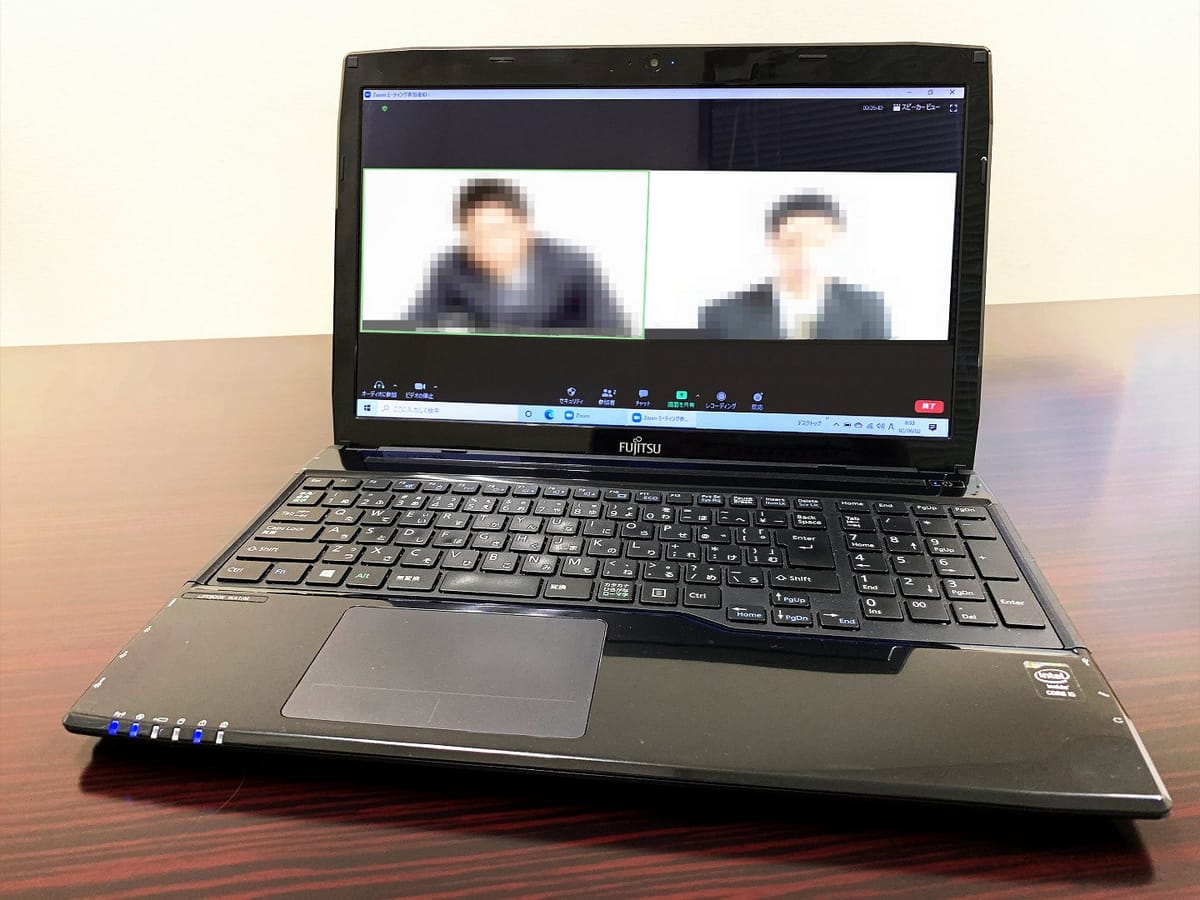
Online classes, church meetings, interviews and work calls all happen on Zoom or Google Meet. Here’s how to join on your phone and keep data use under control.
Zoom
- Install the Zoom Workplace app.
- Tap the meeting link, or open Zoom › Join and enter the Meeting ID.
- Type your full name (helps hosts admit you).
- Enter the passcode if asked.
- Choose Join without video if you want to save data, and use Wi-Fi or call audio.
Google Meet
- Tap the meet.google.com link, or open Meet/Gmail › Join with a code.
- Sign in with your Google account (often required).
- Turn camera off before joining if you want to save data.
- Tap Join or Ask to join.
Meeting manners
- Mute when not speaking.
- Use earphones to avoid echo.
- Use a real name and a clear profile photo.
- Charge your phone; long meetings drain the battery.
Save data
| Setting | Effect |
|---|---|
| Turn off your video | Big saving |
| Hide others’ video / audio only | Bigger saving |
| Google Meet: Settings › Video › lower receive resolution | Less data |
| Zoom: disable HD video | Less data |
Interview or exam on Zoom? Test your audio, camera, data and lighting 30 minutes before.
Related guides
Checked on 10 November 2026. Menus and bank products change; confirm details with the provider.
Common questions
Do I need an account to join a Zoom meeting?
Usually not. Tap the link or enter the meeting ID and passcode in the Zoom app.
Can I join Google Meet without the app?
On Android, Meet opens in the Meet or Gmail app; on any phone you can also join from a browser.
How much data does a video meeting use?
Video meetings can use several hundred MB per hour; audio-only uses much less.
How do I change my name in Zoom?
Before joining, type your name; during the meeting, open Participants › your name › Rename.