
You bought a bundle on Monday and by Thursday it is gone, even though you “didn’t do anything”. Usually your phone did a lot without you: apps updating themselves, videos playing automatically, WhatsApp downloading every photo in every group, and photos backing up to the cloud.
The settings below can cut your data use a lot without making your phone less useful. Menu names differ a little between phone brands, so look for the closest match.
Step 1: Find out what is using your data
Before changing anything, see where the data is going.
- Android: Settings → Network & internet (or Connections) → Data usage → Mobile data usage. You will see a list of apps ranked by how much they used.
- iPhone: Settings → Mobile Data (or Cellular). Scroll down to see each app’s usage, and switch off mobile data for apps that do not need it.
Most people find two or three apps doing most of the damage, usually video, social media and backups.
Step 2: Turn on your phone’s data saver
- Android Data Saver: Settings → Network & internet → Data Saver. It stops most apps using data in the background. You can let important apps (like WhatsApp) stay unrestricted.
- iPhone Low Data Mode: Settings → Mobile Data → Mobile Data Options → turn on Low Data Mode. It pauses automatic updates and background tasks.
Step 3: Tame WhatsApp
WhatsApp is often the biggest data user in Ghana, mostly because of group media.
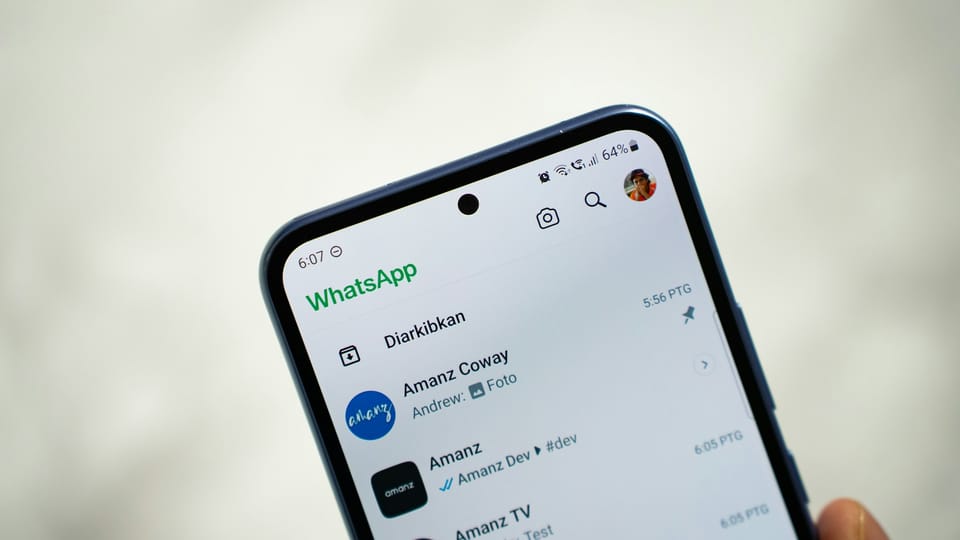
- Go to Settings → Storage and data → Media auto-download. Under “When using mobile data”, untick photos, audio, videos and documents. You can still tap to download anything you actually want.
- Turn on Use less data for calls in the same menu.
- Mute or leave groups that send endless videos.
Step 4: Stop videos playing by themselves
- Facebook and Instagram: look for Media quality or Data saver in settings and turn off autoplay on mobile data.
- TikTok: turn on Data saver in settings.
- YouTube: set video quality to “Data saver” on mobile networks, and download videos on Wi-Fi to watch later.
Step 5: Updates and backups on Wi-Fi only
- Google Play: Settings → Network preferences → App download preference → Over Wi-Fi only. Do the same for auto-update.
- App Store (iPhone): Settings → App Store → turn off automatic downloads over mobile data.
- Photos: set Google Photos or iCloud Photos to back up over Wi-Fi only.
Step 6: Use lighter options
- Browsers like Chrome have lite or data-saving features in some versions. Opera Mini is built to compress pages.
- Download maps for offline use in Google Maps before trips.
- Download music and podcasts on Wi-Fi.
Bonus: watch out for your hotspot
If you share your hotspot with a laptop, it may treat your phone like home broadband and start large updates. On Windows, set the connection as metered to stop that.
Your phone will happily spend your bundle on things you never asked for. Tell it not to.
Check your balance properly
Each network has a short code and an app to check your remaining data. Use the official one rather than a third-party app, and set a usage warning in your phone’s data settings so you know before the bundle runs out.
This guide was checked in October 2026. Menus and services change, so if something looks different on your phone, check with your provider.
Common questions
Does turning off mobile data stop WhatsApp messages?
Yes. Without data or Wi-Fi, WhatsApp cannot send or receive messages. Ordinary SMS and calls still work.
Do voice notes use a lot of data?
Voice notes are small compared with photos and videos. Videos and video calls are usually the biggest data users in WhatsApp.
Is there a way to see data use per app before buying a bundle?
Yes. Your phone’s data usage screen shows how much each app used over a period. Check it after a normal week to choose the right bundle size.
Does Data Saver make the internet slower?
It can make some apps load images more slowly or refresh less often in the background. For most everyday use the difference is small, and the savings are worth it.