Live streaming is popular for church services, events, gaming and Q&As. You can do it straight from your phone once your channel qualifies.
Requirements
- A verified YouTube channel (verify with your phone number).
- At least 50 subscribers for mobile live streaming (YouTube’s rule).
- No live streaming restrictions in the last 90 days.
- Live streaming enabled: the first time can take up to 24 hours to activate.
Go live
- Open the YouTube app and tap + → Go live.
- Allow camera and microphone access.
- Add a title, set privacy (public, unlisted or private) and schedule if you want.
- Choose a thumbnail (or take one), then tap Go live.
- To end, tap Finish; the stream can be saved as a video.
Tips for a good stream
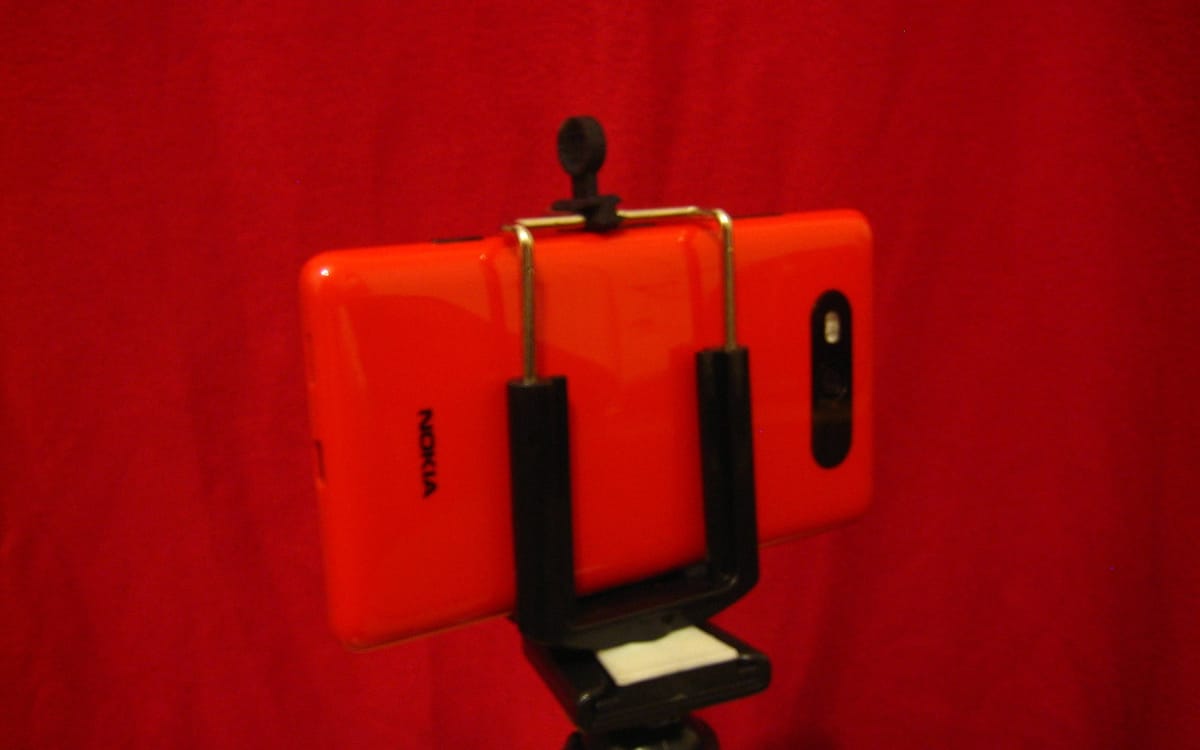
- Use a tripod and shoot horizontally for long streams.
- Test your internet speed; Wi-Fi or a strong 4G/5G signal is best.
- Plug in power: streaming drains batteries fast.
- Use a clip-on microphone for clear sound.
- Pin a comment with key info, and have a friend moderate comments.
Data warning
Streaming uses lots of data. See best network for internet in Ghana and make your data last longer.
Also: go live on TikTok and grow a YouTube channel.
Streaming church services and events
- Schedule the stream in advance and share the link on WhatsApp.
- Use a dedicated phone on a tripod, plugged into power.
- Connect to the sound system if possible for clear audio.
- Test 30 minutes before start with an unlisted stream.
Troubleshooting
| Problem | Fix |
|---|---|
| “Go live” missing | Check subscriber count, channel verification and 24-hour activation |
| Stream keeps buffering | Lower quality, move closer to Wi-Fi, close other apps |
| No audio | Allow microphone permission; check external mic connection |
| Phone overheating | Remove case, avoid direct sun, use a fan |
After the stream
Trim the start and end in YouTube Studio, add chapters and a good thumbnail, and share the replay.
This guide was checked in October 2026. Menus and services change, so if something looks different on your phone, check with your provider.
Common questions
How many subscribers do I need to go live on YouTube mobile?
YouTube says at least 50 subscribers for mobile live streaming, plus a verified channel with no live-streaming restrictions in the last 90 days.
Why can’t I go live?
Live streaming must be enabled (it can take up to 24 hours the first time), your channel must be verified, and you need the subscriber minimum for mobile.
How much data does a YouTube live use?
It depends on quality and length; an hour at 720p can use around 1GB or more. Use Wi-Fi or a big bundle.
Can I go live with fewer than 50 subscribers?
You can stream from a computer with a webcam or encoder, which has different requirements. Check YouTube’s live eligibility page.