“Plugged in, not charging” is one of the most common laptop problems. Work through these steps before paying for a new battery.
1. Check the basics
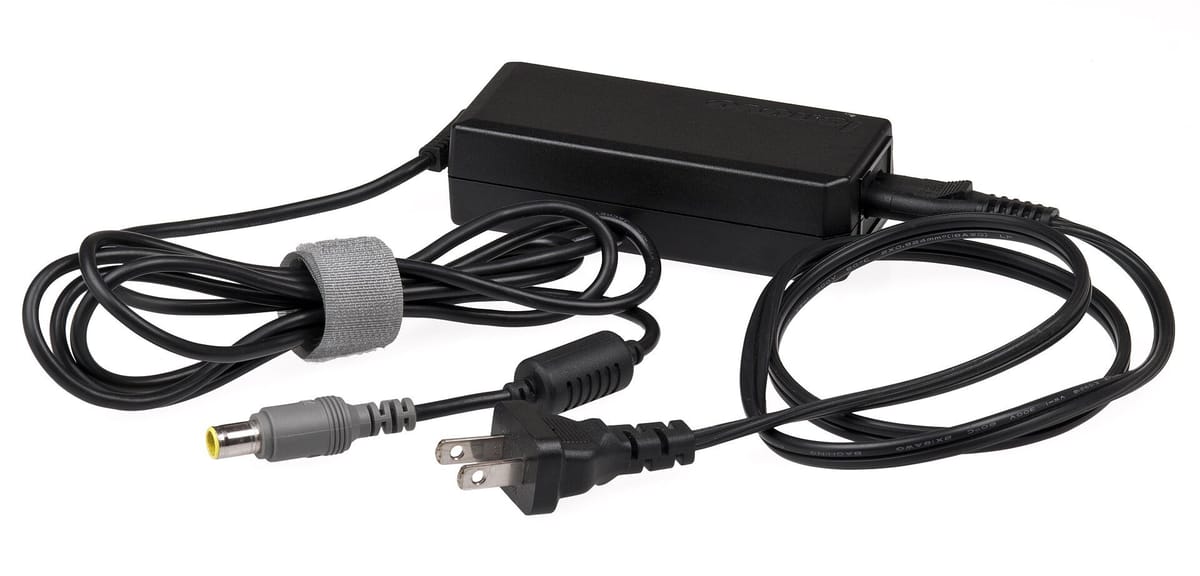
- Try another wall socket; check the extension board and the power light on the charger.
- Check the cable for cuts and the connector for bent pins.
- Push the charger firmly into the port; wiggle gently to see if it’s loose.
- Make sure it’s the correct charger (same voltage/wattage as the original).
2. Check battery care settings
Many laptops stop charging at 60% or 80% to protect the battery. Look in:
| Brand | Setting |
|---|---|
| Lenovo | Lenovo Vantage › Battery › Conservation mode |
| HP | BIOS or HP Support Assistant › Battery Care |
| Dell | Dell Power Manager / Dell Optimizer › Battery settings |
| ASUS | MyASUS › Battery Health Charging |
| MacBook | Optimised Battery Charging (System Settings › Battery) |
3. Do a power reset
- Shut down and unplug the charger.
- Remove the battery if it’s removable.
- Hold the power button for 15–30 seconds.
- Reconnect battery and charger, then switch on.
4. Update drivers and BIOS
- Device Manager › Batteries › right-click Microsoft ACPI-Compliant Control Method Battery › Uninstall device › restart (Windows reinstalls it).
- Install BIOS and chipset updates from the maker’s support app.
5. Check the battery
Run a battery report (see our guide). If health is very low or Windows warns “Consider replacing your battery”, replace it at an authorised service centre.
Related guides
Checked on 10 November 2026 for Windows 11 and current Microsoft 365. Older versions may look slightly different.
Common questions
Why does my laptop say plugged in, not charging?
Often a battery care setting limiting charge to 80%, a faulty charger or cable, a loose port, or a worn battery.
Can a fake charger damage my laptop?
Yes. Wrong voltage or poor-quality chargers can damage the battery or motherboard.
How do I do a power reset?
Unplug the charger, remove the battery if possible, hold the power button for 15–30 seconds, then reconnect.
Can power fluctuations cause this?
Yes. Surges can damage chargers. Use a surge protector or stabiliser.