
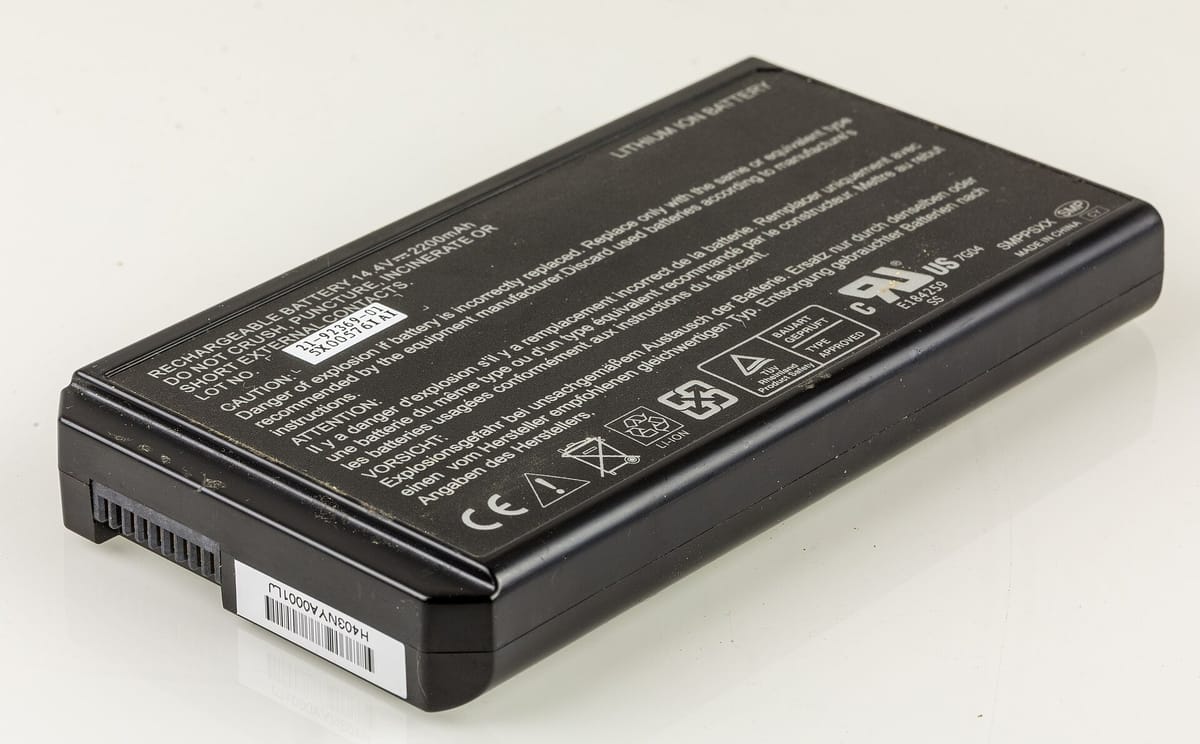
Laptop batteries wear out. Checking battery health tells you whether your laptop can last through dumsor and whether a used laptop is really a good deal.
Windows: battery report
- Click Start, type cmd, open Command Prompt.
- Type
powercfg /batteryreportand press Enter. - It saves a file like
C:\Users\YourName\battery-report.html. Open it in a browser. - Find Design Capacity and Full Charge Capacity, plus Cycle Count.
Battery health = Full Charge Capacity ÷ Design Capacity × 100. Example: 38,000 ÷ 50,000 = 76%.
MacBook
- System Settings › Battery › click (i) next to Battery Health: shows Normal or Service Recommended, and maximum capacity.
- Cycle count: hold Option › Apple menu › System Information › Power.
What the results mean
| Health | Meaning |
|---|---|
| 80–100% | Good |
| 60–79% | Worn: expect shorter battery life |
| Below 60% | Replace soon |
| “Service recommended” (Mac) | Replace |
Make the battery last longer
- Use the maker’s battery care mode (charge limit to 80%) if you’re mostly plugged in.
- Avoid heat: don’t use the laptop on a bed or pillow.
- Use the original or a good-quality charger.
- Don’t leave it at 0% for long.
Related guides
Checked on 10 November 2026 for Windows 11 and current Microsoft 365. Older versions may look slightly different.
Common questions
How do I check battery health on Windows?
Open Command Prompt and type powercfg /batteryreport. Open the HTML file it saves and compare Design Capacity with Full Charge Capacity.
What is a good laptop battery health?
Above 80% of design capacity is fine. Below 60% means noticeably shorter battery life.
How do I check a MacBook battery?
Hold Option and click the battery icon, or System Settings › Battery › Battery Health. For cycle count: System Information › Power.
Should I check battery health before buying a used laptop?
Yes, always. A battery replacement adds to the real price.