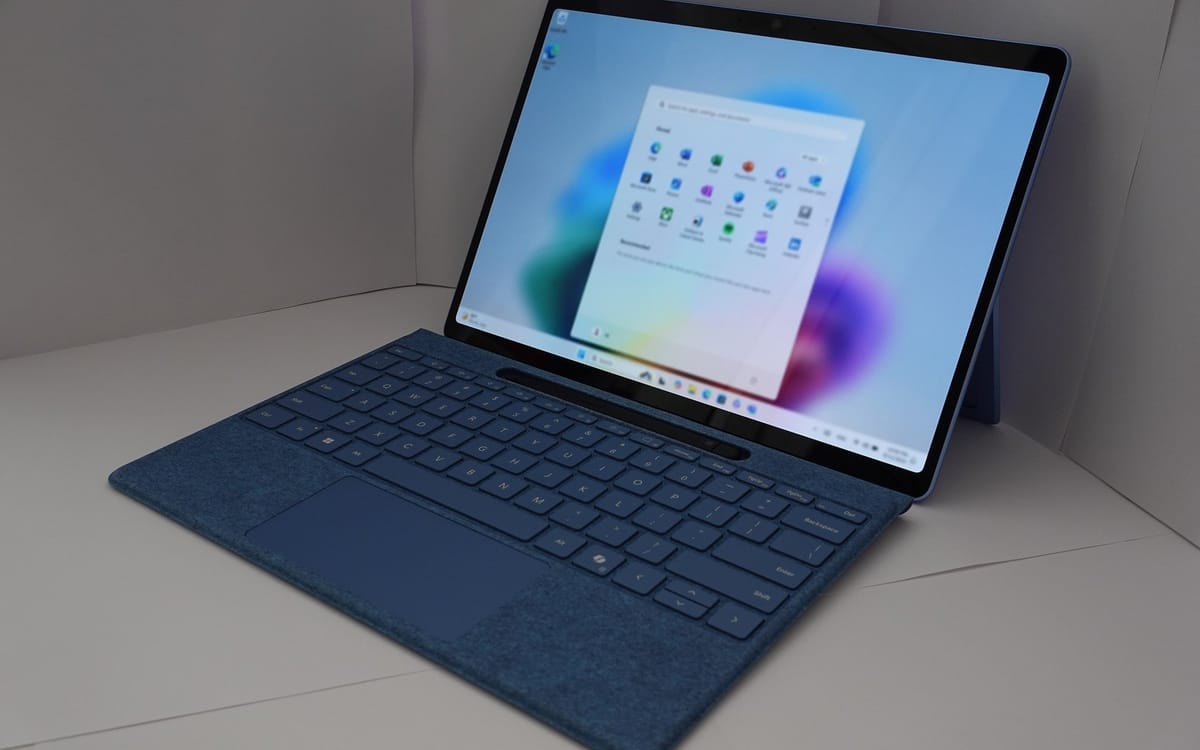
Windows 11 has many time-saving features most people never use. Here are the ones worth learning.
Productivity
- Snap layouts (Windows + Z): put two to four windows side by side.
- Clipboard history (Windows + V): paste things you copied earlier.
- Screenshot (Windows + Shift + S). See take a screenshot on a laptop.
- Voice typing (Windows + H).
- Emoji and symbols (Windows + .), including ₵.
- Virtual desktops (Windows + Tab): separate work and school.
- Focus sessions in the Clock app to block distractions.
Speed and storage
- Remove startup apps: Task Manager → Startup apps.
- Uninstall bloatware: Settings → Apps → Installed apps.
- Storage Sense: Settings → System → Storage → turn on to clear temporary files.
- Turn on battery saver: laptop battery tips.
Phone and sharing
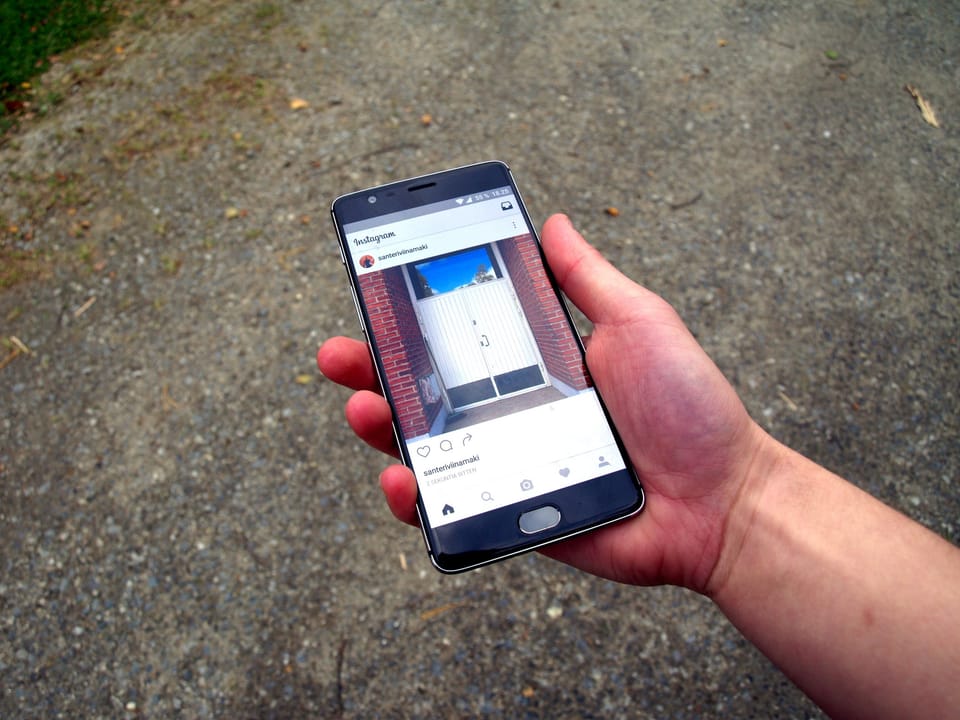
- Phone Link: see Android notifications and messages on your PC.
- Nearby sharing / Quick Share: send files to nearby devices. See transfer files phone to laptop.
Security
- Turn on Windows Hello (PIN, face or fingerprint).
- Keep Windows Security on and run Windows Update.
Shortcuts to memorise
| Shortcut | Does |
|---|---|
| Windows + E | Open File Explorer |
| Windows + L | Lock PC |
| Windows + D | Show desktop |
| Alt + Tab | Switch apps |
| Ctrl + Shift + Esc | Task Manager |
| Windows + I | Settings |
More: speed up a slow Windows laptop.
Hidden helpers
- Live Captions (Windows + Ctrl + L): captions for any audio.
- Night light: Settings → Display, easier on the eyes at night.
- Focus assist / Do not disturb to silence notifications.
- Snipping Tool screen recording for quick tutorials.
Keep Windows healthy
- Restart after updates.
- Keep at least 20GB free on the C: drive.
- Uninstall apps you no longer use.
- Run Windows Security scans occasionally.
Typing the cedi sign
Press Windows + ., go to the symbols tab and choose ₵, or copy it from a document and add it to your clipboard history (Windows + V).
This guide was checked in October 2026. Menus and services change, so if something looks different on your phone, check with your provider.
Common questions
How do I take a screenshot on Windows 11?
Press Windows + Shift + S to snip part of the screen, or PrtScn.
How do I see clipboard history?
Press Windows + V (turn it on the first time).
How do I split the screen?
Hover over the maximise button or press Windows + Z for Snap layouts.
How do I type with my voice?
Press Windows + H in any text box.