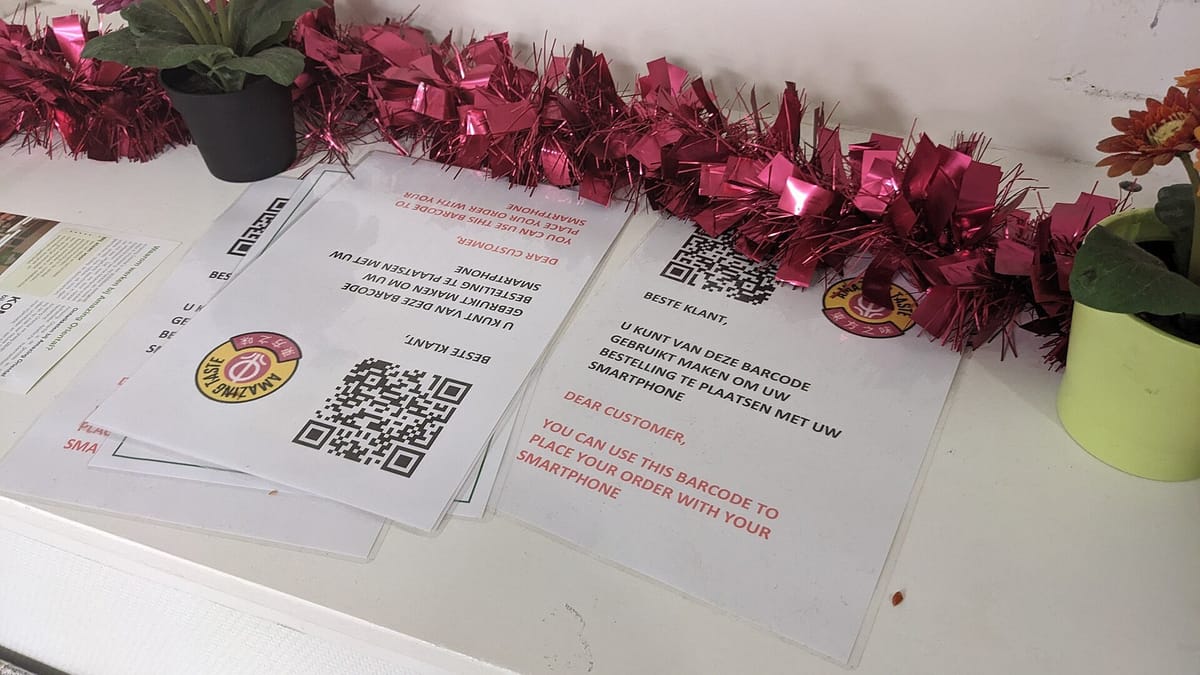
QR codes are everywhere in Ghana: on menus, MoMo merchant stickers, event tickets, Wi-Fi and WhatsApp Web. Your phone can read them without any extra app.
iPhone
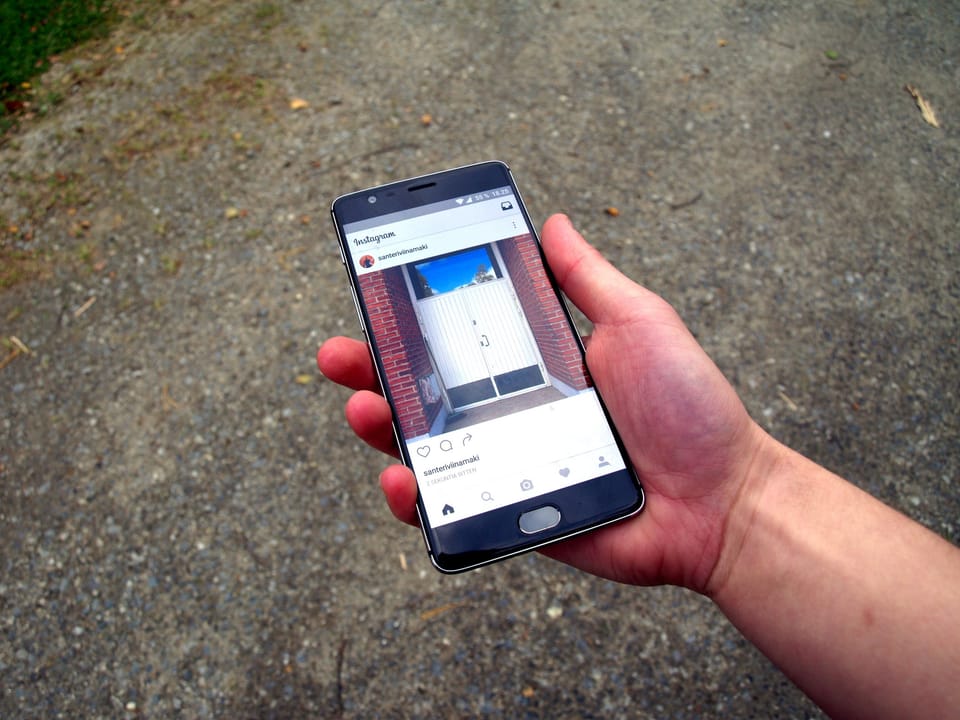
- Open the Camera app (rear camera).
- Point it at the QR code; hold steady.
- Tap the yellow link that appears.
Or add the Code Scanner to Control Centre for a dedicated scanner.
Android
- Open the Camera; most Samsung, Tecno, Infinix and Pixel cameras detect QR codes automatically.
- If not, tap the Google Lens icon (in the camera, Google search bar or Photos).
- Tap the link or action shown.
On Samsung, you can also add Scan QR code to the quick settings panel.
Scan a QR code in a picture or screenshot
- Android: open the image in Google Photos or Gallery › tap Lens (or Bixby Vision).
- iPhone: open the photo and touch and hold the QR code, or tap the Live Text icon.
Wi-Fi QR codes
Scan a router or café Wi-Fi QR code and tap Join. To share your own Wi-Fi, Android shows a QR code under Wi-Fi › your network › Share.
Stay safe with QR codes
- Read the link before opening. Does the address match the business?
- Watch for stickers placed over real QR codes (common on posters and payment points).
- Never enter your MoMo PIN or bank password on a page opened from a random QR code.
- For MoMo merchant payments, confirm the merchant name on screen before approving.
Related guides
Checked on 10 November 2026. Menu names differ slightly between phone brands and software versions.
Common questions
How do I scan a QR code without an app?
Open your camera and point it at the code. iPhones and most Android phones show a link or button to open it.
How do I scan a QR code from a screenshot?
Open the image in Google Photos or the Gallery and tap Lens, or on iPhone, open the photo and tap the code.
Can a QR code be a scam?
Yes. A fake QR code can open a phishing site or a fake payment page. Check the link before you open it.
How do I scan a Wi-Fi QR code?
Point your camera at it and tap “Join network”; on Android you can also scan from Wi-Fi settings.