A blank page in the middle or at the end of a Word document usually comes from extra empty paragraphs, a manual page break, a section break or a table. Here is how to find and remove it.
Step 1: Show what’s hidden
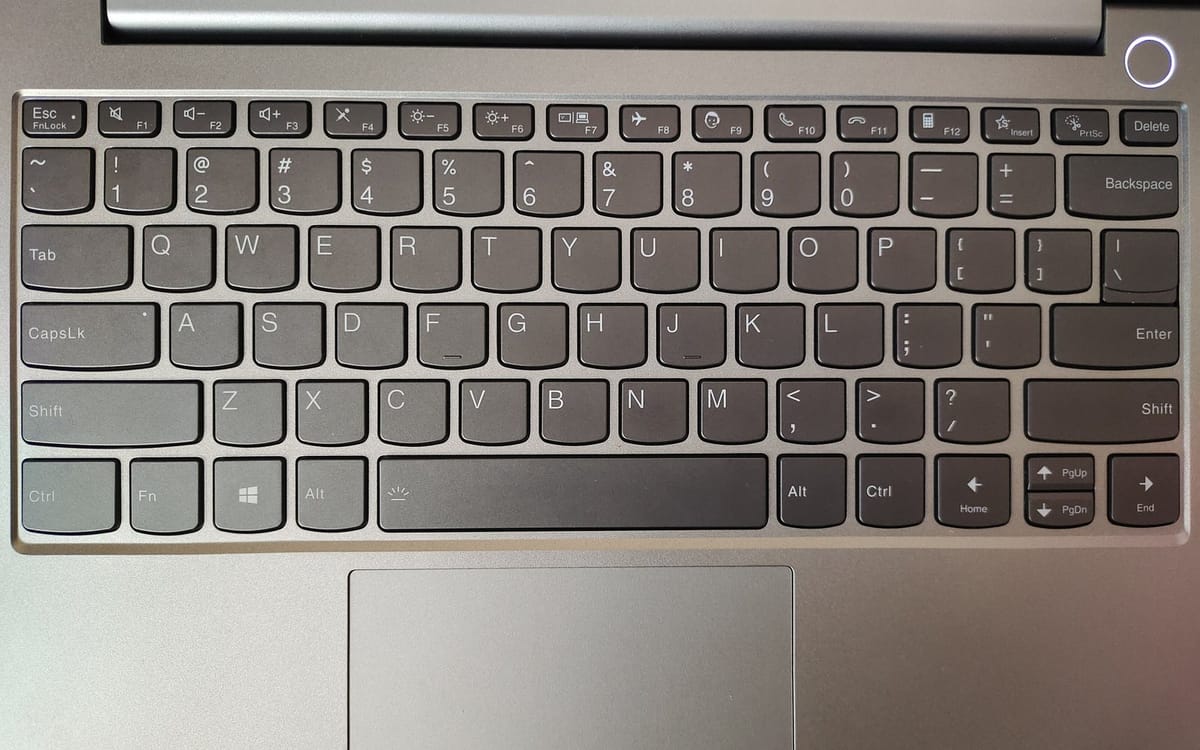
Press Ctrl+Shift+8 (Windows) or Command+8 (Mac), or click the ¶ button on the Home tab. You’ll now see paragraph marks (¶) and breaks.
Step 2: Delete what’s on the blank page
- Empty paragraphs (¶): select them and press Delete.
- Page Break: click just before it and press Delete.
- Section Break: click just before it and press Delete (this can change formatting of the following section, so check after).
Blank page after a table
Word always keeps a paragraph after a table. If your table reaches the bottom of the page, that paragraph creates a new blank page. Fix: select the ¶ after the table, set the font size to 1, and if needed set paragraph spacing to 0. If that doesn’t work, make the bottom margin slightly smaller (Layout → Margins).
Quick method: Navigation pane
Press Ctrl+G, type \page and press Enter to select the current page’s content, then press Delete. Use with care on pages that have content.
When saving as PDF
If the blank page only appears in the PDF, check for an empty paragraph at the end and remove it before saving again.
Related guides
This guide was checked in October 2026. Menus and services change, so if something looks different on your phone, check with your provider.
Common questions
Why can’t I delete the last blank page in Word?
Word always keeps a paragraph after a table. If a table fills the page, that paragraph spills onto a new page; make it 1pt in size to remove the page.
What is the shortcut to show paragraph marks?
Ctrl+Shift+8 on Windows, Command+8 on Mac.
How do I delete a page with content?
Click at the start of the page, hold Shift and click at the end, then press Delete.
Does this work in Google Docs?
The idea is similar: remove extra empty lines and page breaks.